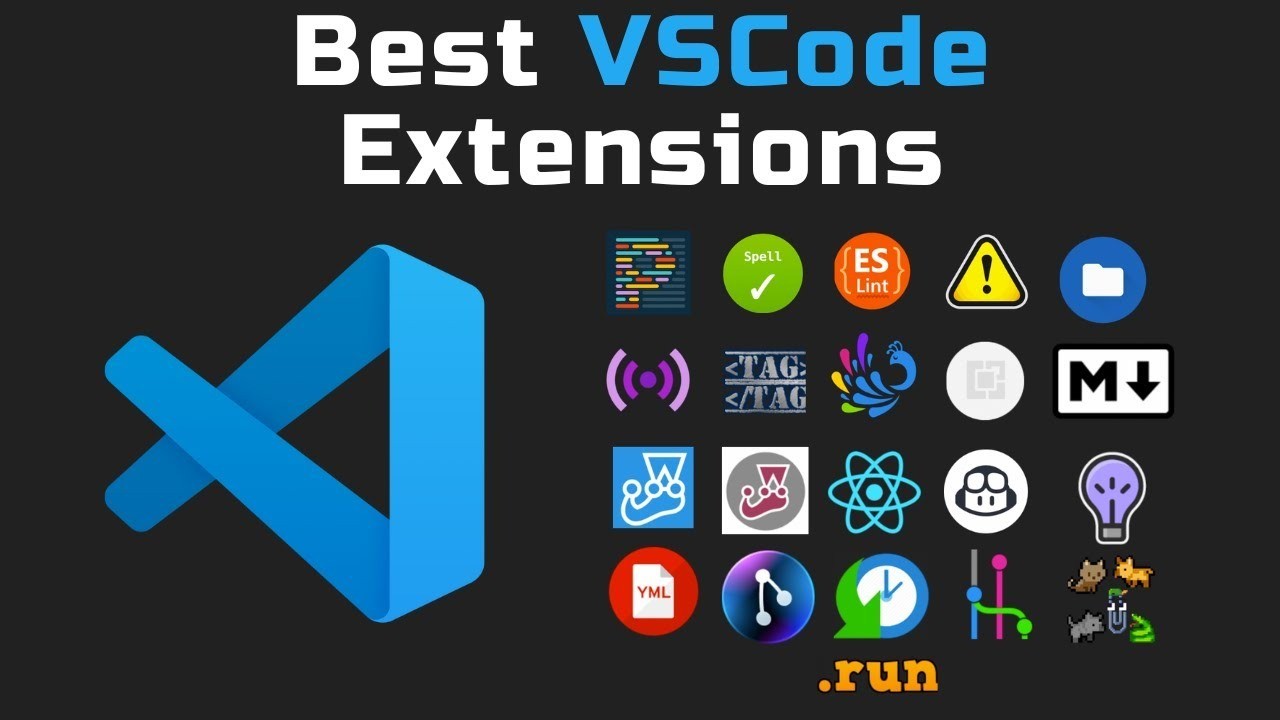
Visual Studio Code has become the go-to editor for millions of developers worldwide, and for good reason. Its extensibility through the marketplace makes it incredibly powerful and customizable. Today, we'll explore the top 10 extensions that every developer should have in their toolkit to maximize productivity and streamline their workflow.
Why VS Code Extensions Matter
Extensions transform VS Code from a simple text editor into a full-featured development environment. They can automate repetitive tasks, provide intelligent code completion, integrate with external tools, and enhance the overall development experience. The right extensions can save you hours of work and help you write better code.
The Essential Extensions
1. Prettier - Code Formatter
Prettier automatically formats your code to ensure consistent styling across your project. It supports JavaScript, TypeScript, CSS, HTML, and many other languages.
2. IntelliCode
Microsoft's AI-assisted development tool that provides intelligent code completions based on understanding your code context and best practices from thousands of open source repos.
3. ESLint
Integrates ESLint into VS Code to help you find and fix problems in your JavaScript and TypeScript code. Essential for maintaining code quality and consistency.
4. GitLens
Supercharges the Git capabilities built into VS Code. It helps you visualize code authorship, navigate and explore Git repositories, and gain valuable insights via rich visualizations.
5. Live Server
Launch a local development server with live reload feature for static and dynamic pages. Perfect for front-end development and testing.
6. Auto Rename Tag
Automatically rename paired HTML/XML tags. When you rename one HTML/XML tag, it automatically renames the paired closing tag.
7. Bracket Pair Colorizer
Colors matching brackets with the same color to make it easier to identify matching brackets in your code. Essential for complex nested structures.
8. Path Intellisense
Autocompletes filenames in your project. Extremely helpful when working with imports, image sources, and file references.
9. Debugger for Chrome
Debug your JavaScript code running in Google Chrome directly from VS Code. Set breakpoints, step through code, and inspect variables.
10. Material Theme
A beautiful theme for VS Code based on Material Design principles. Provides a clean, modern interface that's easy on the eyes during long coding sessions.
Installation and Setup Tips
Installing these extensions is straightforward. Open VS Code, navigate to the Extensions view by clicking the Extensions icon in the Activity Bar, search for the extension name, and click Install. Most extensions work out of the box, but some may require configuration.
Pro Tips for Extension Management
- Regularly update your extensions to get the latest features and bug fixes
- Disable extensions you're not actively using to improve performance
- Use workspace-specific extension recommendations for team projects
- Create extension packs for your most-used combinations
- Review extension permissions before installation
Conclusion
These ten extensions represent just the tip of the iceberg when it comes to VS Code's extensibility. Each one addresses specific pain points that developers face daily, from code formatting and error detection to debugging and visual enhancement. By incorporating these tools into your workflow, you'll find yourself writing better code more efficiently.
Remember that the best extensions are the ones that solve problems you actually have. Start with a few core extensions and gradually add more as you identify specific needs in your development process. Your future self will thank you for the time invested in setting up a proper development environment.